Dial by Name/Dial by Number Troubleshooting
Below are some common issues with the Dial by Name and Dial by Number options in the Auto Attendant.
Wrong Name Played
When using these features, the system will play a message Transferring To [recorded name]. Occasionally, the recorded name does not match the name of the user.
This occurs when the name of a user is changed instead of deleting/deactivating a user and building a new one. To fix this problem a new name greeting needs to be recorded.
- From the user's phone, dial 9999.
NOTE: Dialing *86 will take you to the wrong menu in the voice portal.
- Enter the voicemail PIN of the user. The default is 0000.
- Select option 3 to access the greetings menu.
- Select option 1 to record a new name.
- Record just the name of the user.
- Press # to end recording.
Not a Valid Extension or Your Party Could Not be Identified
When using dial by number and encountering the message that is not a valid extension for an extension that does exist on the account, it means that either the scope of the auto-attendant is not set correctly, or the extension has privacy settings keeping it from being reached with dial by number.
When using dial by name and receiving the message Your Party Could Not be Identified for a user that does exist on the account, it means that either the scope of the auto-attendant is not set correctly, the user's name is spelled wrong in the portal, or the extension has privacy settings keeping it from being reached with dial by name.
Change the Scope
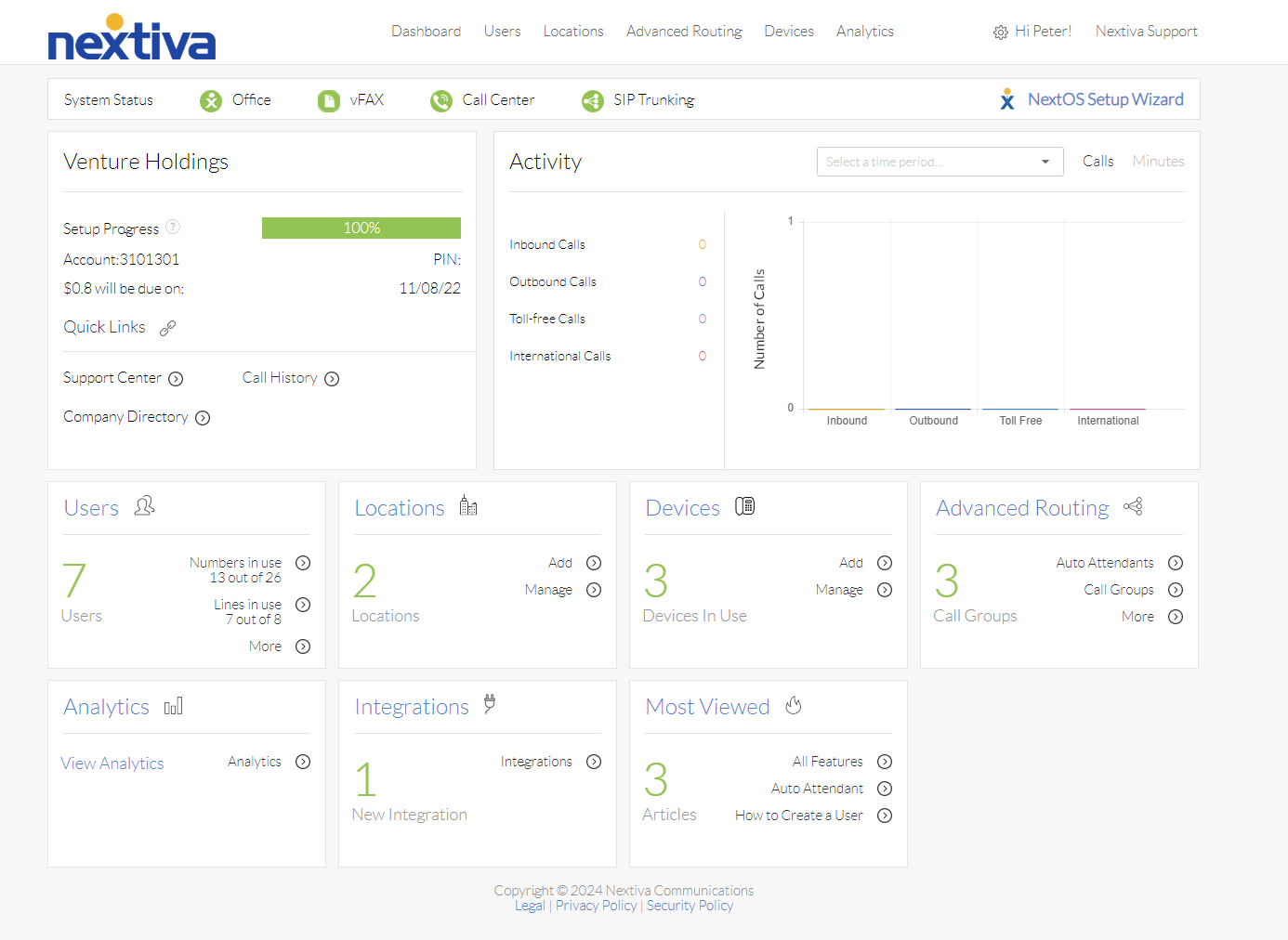
Choose the image that looks most like your screen once logged in: | |
 |  |
Change the Scope
By default, the scope for your auto attendants is already set to use the enterprise and will not affect dial by name or dial by number.
Change the Scope
- Log in to the voice portal as an administrator.
- From the Nextiva Voice Admin Dashboard, hover over Advanced Routing at the top of the page and select Auto Attendants. The options to create or manage an Auto Attendant will be displayed under Auto Attendants in the left panel.
- Select the location the Auto Attendant is built from the drop-down menu.
- Click on the auto attendant to adjust the scope.
- Click the Advanced Settings link to expand the section.
- Adjust the scope for extension dialing using the drop-down menu under Extension Dialing Scope.
- Enterprise - Looks for extensions across the entire account.
- Location - Looks for extensions across the location the auto attendant is built.
- Department - Looks for extensions across just the department the auto attendant is built on.
- Enterprise - Looks for extensions across the entire account.
- Click Save.
Privacy Settings
Users' privacy settings can be adjusted to block calls coming from an auto attendant using dial-by-name or dial-by-number. Use the articles below to adjust privacy settings.