Call Forwarding Selective
Description
Call forwarding selective is used to forward calls to destinations based on certain rules and schedules. This feature is often used for after-hours and holiday routing of calls. It is also the highest priority form of forwarding, overriding call forward always. If configured on a user, this feature only forwards direct calls to the user, it will not forward distributed calls (i.e. calls from a call center or call group).
Rules
Unlike other forwarding (Unanswered, Always, Unreachable), call forwarding selective uses different rules to determine if forwarding should or should not happen. When configuring rules keep in mind that call forwarding selective uses a first-match policy. It will start with the top rule and check to see if the inbound call matches any of the policies, if no match is found, it will continue to the next rule. Once a rule match is found, that rule is applied to the inbound call and all other rules are ignored. Since rules are sorted alphabetically, it is a good practice to name rules using a 2-digit number followed by the name (i.e. 01 - Holiday) to ensure that rules are put in the correct order
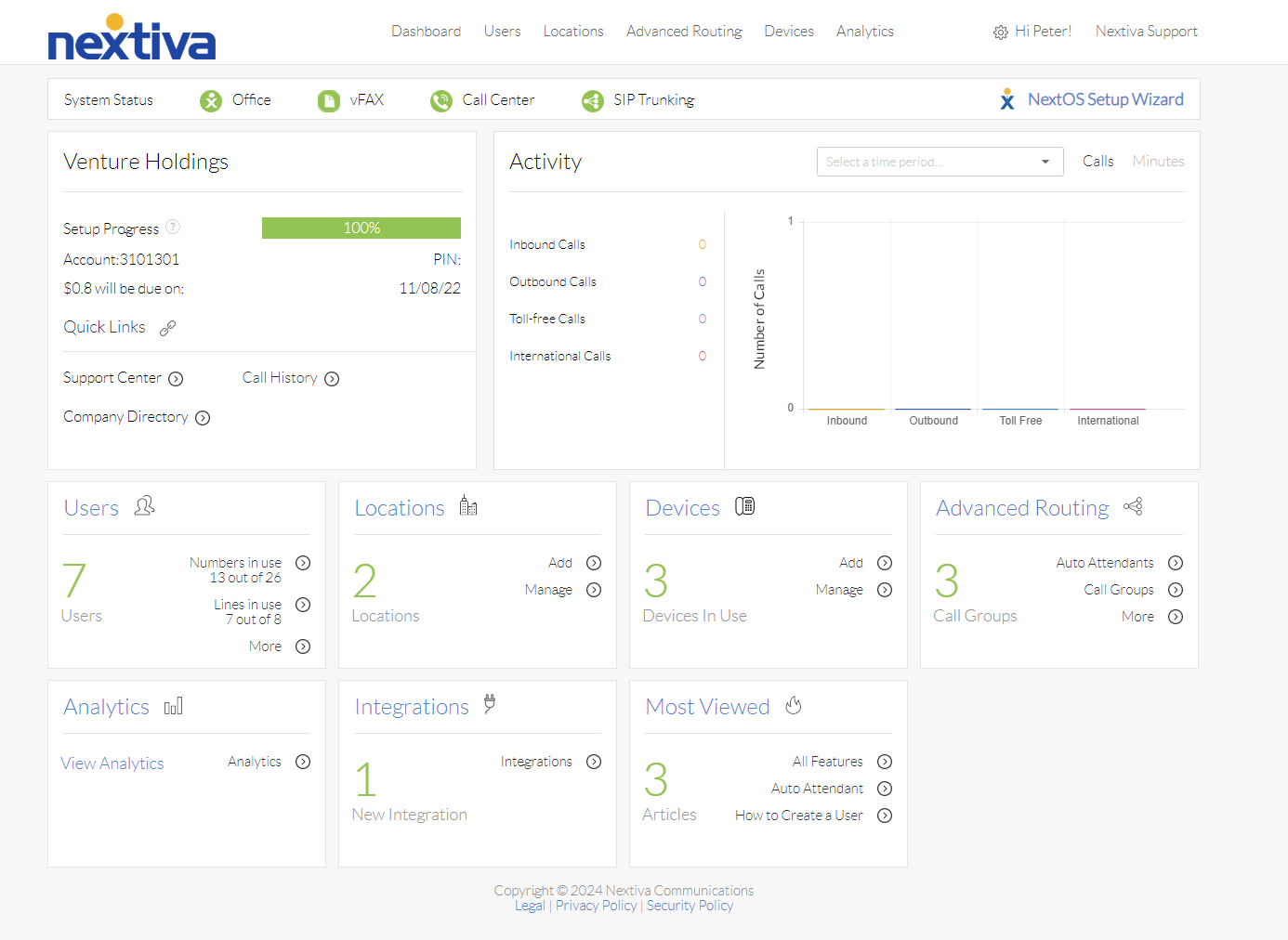
Choose the image that looks most like your screen once logged in: | |
 |  |
Setup
When configuring a schedule for a rule, be aware that you can only set either a regular business hours schedule or a holiday schedule. Trying to put both schedules in the same rule will cause the rule to not forward properly. Two different rules will need to be made if forwarding for business hours and holidays needs to be done.
- Log in to the voice portal as an administrator.
- Hover over Users at the top of the page and select Manage Users.
NOTE: If applying to a call group or auto attendant, hover over Advanced Routing and click on Call Groups or Auto Attendants.
- Select the user, call group, or auto attendant to configure.
- Scroll down and expand the Forwarding section by clicking on it.
- Click on Call Forwarding Selective to expand the section.
- Define the default forwarding Phone Number, if none is present, and click Save.
NOTE: If you wish to forward to an extension's voicemail box, you can use *55 followed by the extension (i.e. *551000 will forward the call to the voicemail box for ext 1000).
- Click the + button to add a new rule
- Enter a Description, keeping in mind they are sorted alphabetically, and use first match policy.
- Select an option from the Forward to the dropdown menu.
- Forward to Default number - Calls that match the rule will use the default number listed above the list of rules.
- Forward to Specific number - Calls that match the rule will forward to the specific number listed in the rule.
NOTE: If you wish to forward to an extension's voicemail box, you can use *55 followed by the extension (i.e. *551000 will forward the call to the voicemail box for ext 1000).
- Do Not Forward - Calls that match this rule will not be forwarded for any reason. This will override any other forwarding turned on.
- Forward to Default number - Calls that match the rule will use the default number listed above the list of rules.
- Select either a Regular Schedule or a Holiday Schedule Do not use both. For instructions on how to create a schedule, see Setting up schedules.
If using a holiday schedule, the regular schedule should be set to Every Day All Day.
If using a regular schedule, the holiday schedule should be set to None.
- Choose if this rule will apply to Any Phone Number or a specific set of phone numbers, Following Phone Numbers
- If using Following Phone Numbers list out the specific numbers.
- Click Save Criteria
- If additional rules are needed, return to step 7.
- Click Save.