How to Update Auto Attendant Schedules in Your Voice Portal
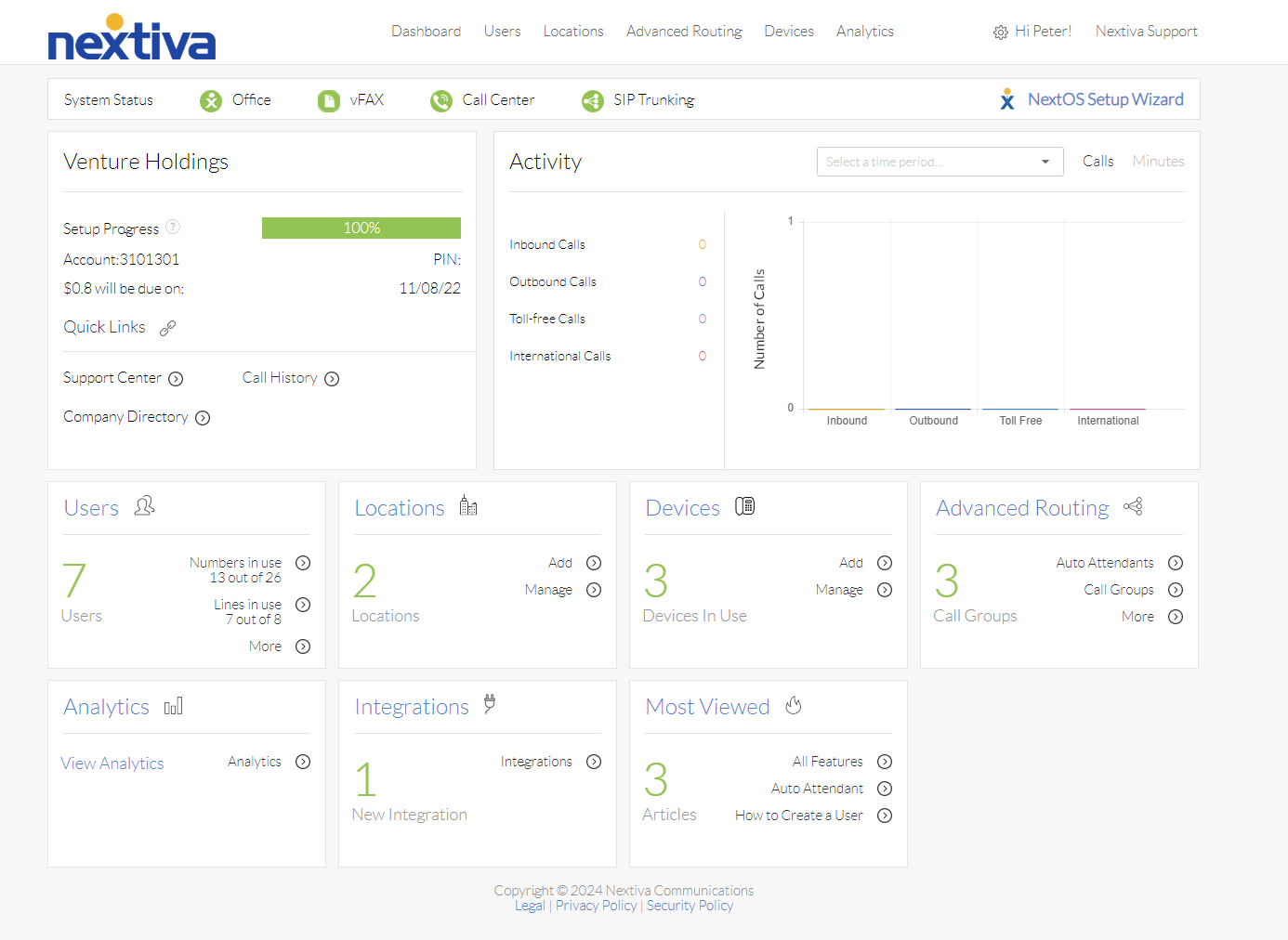
Choose the image that looks most like your screen once logged in: | |
 |  |
Update Schedules for Existing Auto Attendants
The schedules assigned to an auto attendant determine whether callers hear the business hours menu or the after-hours menu. Each auto attendant can have both a regular schedule and a holiday schedule.
The regular schedule specifies when the auto attendant plays the business hours menu. When creating this schedule, ensure it covers the business’s open hours. Any time outside this schedule will default to the after-hours menu.
The holiday schedule lists holidays or events when the business will be closed. When creating this schedule, include any days your business will be closed during standard hours. Holiday schedules can apply to an entire day or just a few hours. When active, the holiday schedule overrides the regular schedule and plays the after-hours menu.
To assign a different schedule to an existing auto attendant:
- Log in to the voice portal as an administrator.
- Hover over Advanced Routing at the top of the page and select Auto Attendants.
- If you have multiple locations, select the location where the auto attendant is built.
- Select the Auto Attendant you want to update.
- From the Regular Schedule drop-down menu, select the regular schedule you created.
Note: Selecting Every Day All Day will play the business hours menu except during holiday schedules.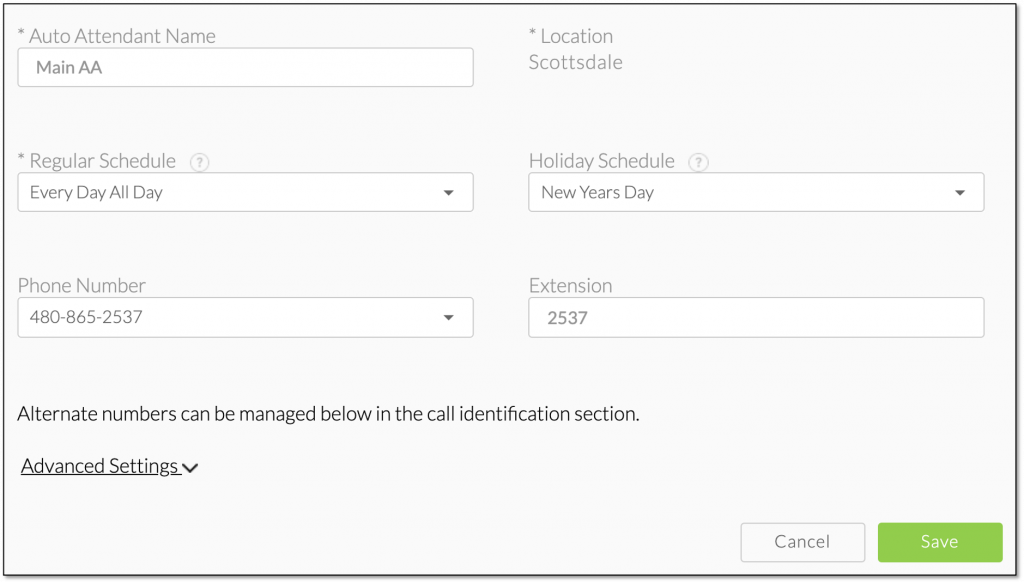
- From the Holiday Schedule drop-down menu, select the holiday schedule you created.
Note: The holiday schedule overrides the regular schedule and sends calls to the after-hours menu. - Click Save.