Simultaneous Ring
Article 000003811 · Updated Sep 2, 2025 · 3,988 views
| Simultaneous ring allows a user's line to ring multiple phone numbers or extensions at the same time. This feature only applies to direct calls to the user and does not work with calls from call flows using call flow voice settings or call centers. | ||
| If you use the mobile version of NextivaONE, do not configure simultaneous ring to use the same number as the mobile device, it will cause call failure. | ||
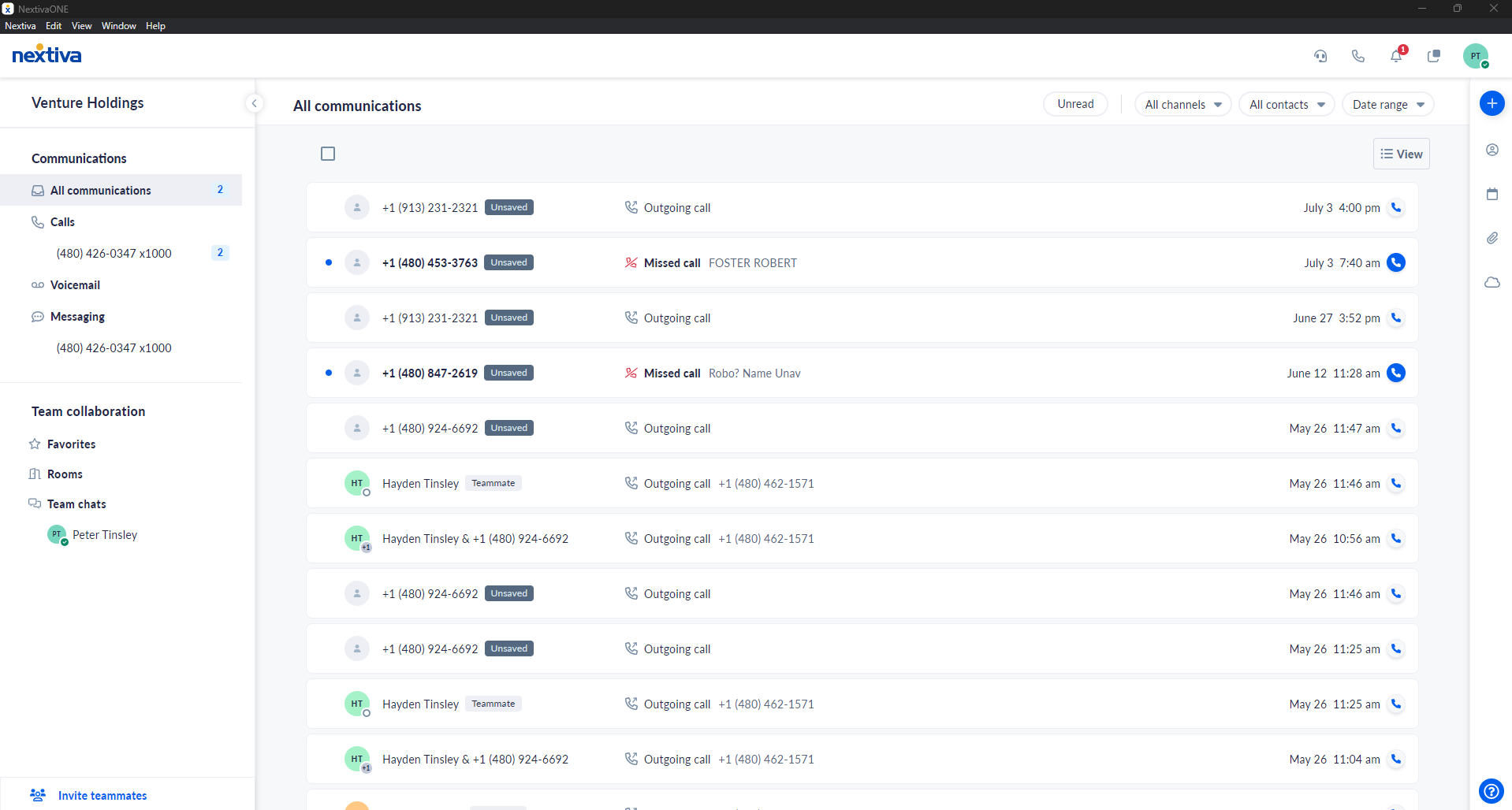
Choose the image that looks most like your screen once logged in: | ||
 |  |
Setup
This can be configured from either the administrator portal or the user portal.
Set up as Administrator
- Log in to the Nextiva 3.0 voice portal as an administrator.
- Hover over Users at the top of the page, and click on Manage Users.
- Click on the user you want to configure.
- Scroll down, and click on Mobility to expand the section.
- Click Simultaneous Ring.
- To disable simultaneous ring when the user is on a call, check the box Do not use simultaneous ring if I'm on a call.
- Enter up to 10 different extensions or 10-digit phone numbers.
- Checking the Answer Confirmation box requires the user to press any key after answering the call to connect. This will prevent unanswered calls from going to the external phone number's voicemail. Instead, unanswered calls will be redirected back to the user's Nextiva Voicemail.
- Click Save.
- Define when simultaneous ring is used by clicking the + icon in the bottom right-hand corner of the section.
- Enter a name.
- To disable simultaneous ring during this event, check the Don't use simultaneous ring box.
- Select either a regular schedule or holiday schedule to apply to the rule. If both types of schedules are needed, create a second rule with the second schedule.
- Choose if this rule applies to all callers or specific callers.
- For specific callers, select Following Phone Numbers.
- Choose if this includes private or unknown callers.
- Enter up to 12 phone numbers. If more than 12 are needed, additional rules will need to be created.
- For specific callers, select Following Phone Numbers.
- Click Save Criteria
- Enter a name.
Set up as a User
-
- Log in to your user portal.
- Click Features in the upper right-hand corner.
- Click on Mobility to expand the section.
- Click on Simultaneous Ring to configure it.
- To disable simultaneous ring when the user is on a call, check the box Do not use simultaneous ring if I'm on a call.
- Enter up to 10 different extensions or 10 digit phone numbers.
- Checking the Answer Confirmation box requires the user to press any key after answering the call to connect. This will prevent unanswered calls from going to the external phone number's voicemail. Instead, unanswered calls will be redirected back to the user's Nextiva Voicemail.
- Click Save.
- Define when simultaneous ring is used by clicking the + icon in the bottom right-hand corner of the section.
- Enter a name.
- To disable simultaneous ring during this event, check the Don't use simultaneous ring box.
- Select either a regular schedule or holiday schedule to apply to the rule. If both types of schedules are needed, create a second rule with the second schedule.
- Choose if this rule applies to all callers or specific callers.
- For specific callers, select Following Phone Numbers.
- Choose if this includes private or unknown callers.
- Enter up to 12 phone numbers. If more than 12 are needed, additional rules will need to be created.
- For specific callers, select Following Phone Numbers.
- Click Save Criteria.
- Enter a name.
- Log in to your user portal.
Still need help with this?