View or reset your Administrator PIN
Article 000003788 · Updated Jun 4, 2025 · 3,501 views
| Your administrator PIN is used to verify you when contacting Nextiva support. | |
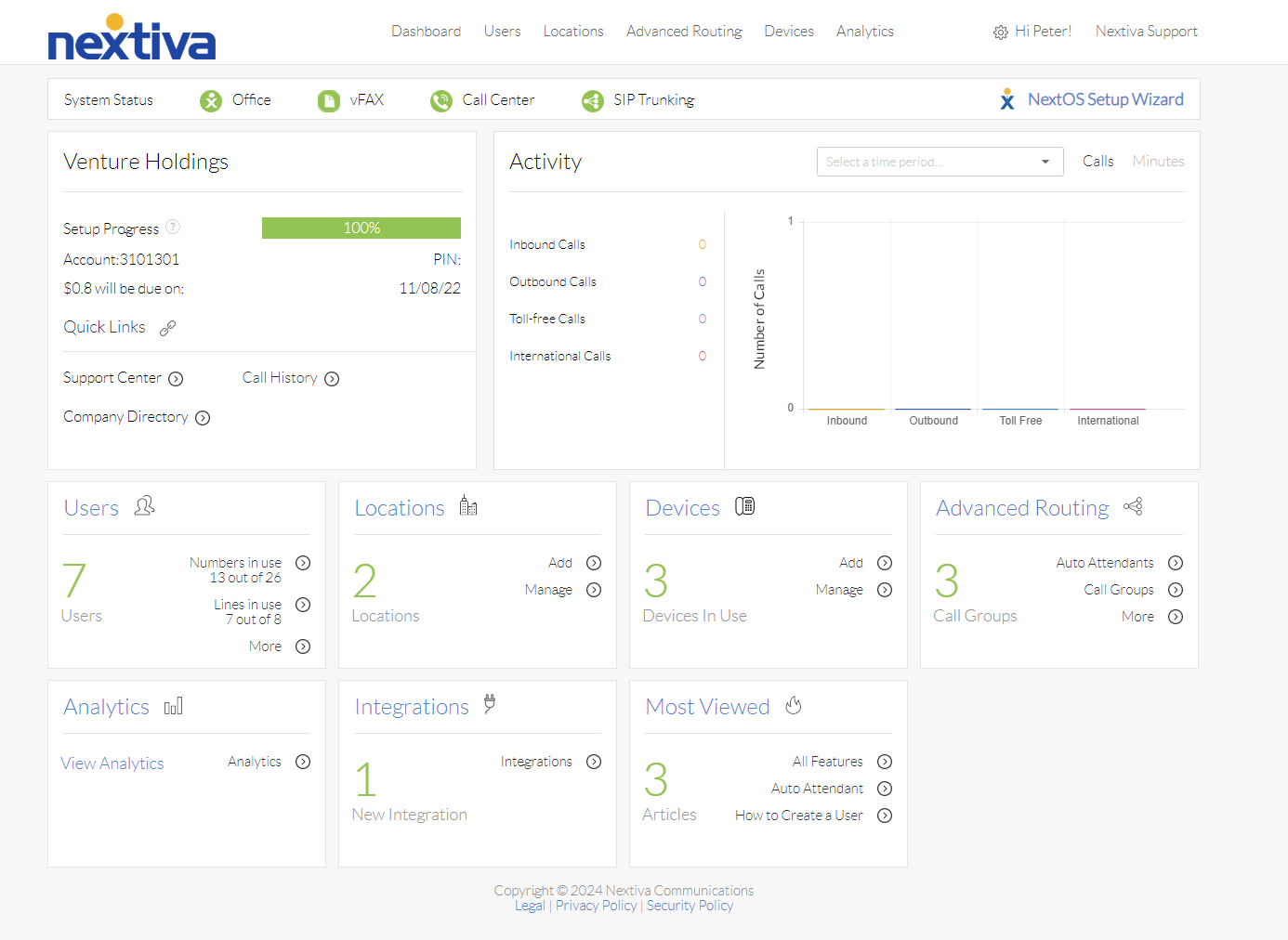
Choose the image that looks most like your screen once logged in: | |
 |  |
Update Administrator PIN
Update My PIN
- Log in with your administrator profile.
- Hover over your name in the upper right-hand corner and click My Account.
- Click Profile on the left-hand side.
- Click Security Information to expand the section.
- View and (if desired) change your PIN.
- Click Save if your PIN changed.
Update another User's PIN
A regular user can be marked as authorized within the voice portal without giving them administrative access to the portal. This would allow the user to call in and request changes to the account.
- Log in with your administrator profile.
- At the top of the page hover over Users and select Manage Users.
- Click on the User to modify.
- Click on Security Information to expand the section.
- Check the Authorized User box and type in a PIN for the user.
- Click Save.
- The user is now authorized to call into Nextiva support and request account-wide changes.
Update another Administrator's PIN
- Log in with your administrator profile.
- At the top of the page hover over Users and select Manage Administrators.
- Click on the Administrator to modify.
- Click on Security Information to expand the section.
- Type in a new PIN and click Save.
Still need help with this?