Push to Talk
Article 000003784 · Updated Jul 16, 2025 · 1,643 views
|
Push to Talk is a feature designed to initiate a one- or two-way conversation between two users. The call is automatically answered on speakerphone by the receiving phone. By default, Push to Talk is blocked for all users, but this setting can be adjusted in a user's preferences.
To use push to talk:
| |
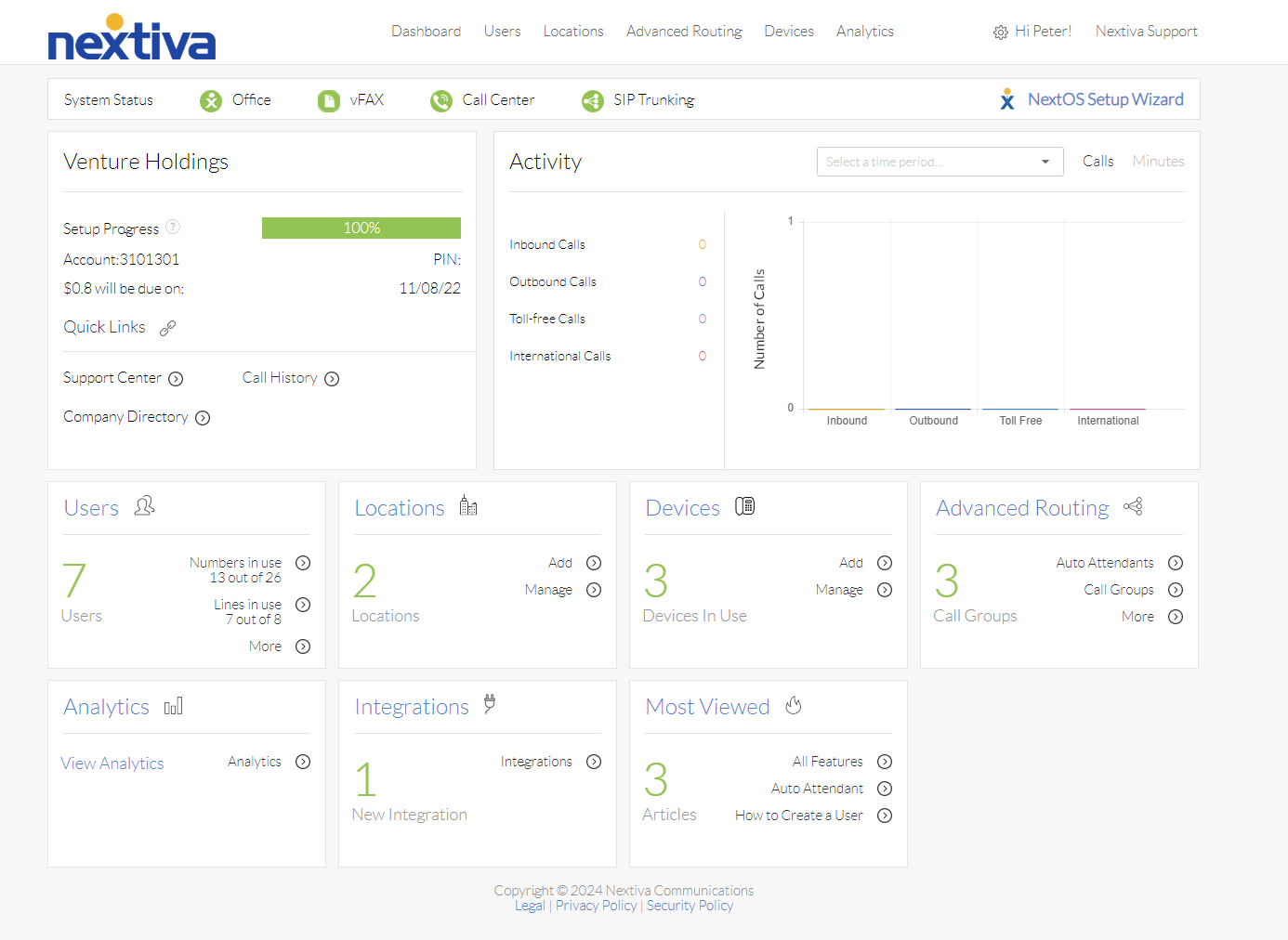
Choose the image that looks most like your screen once logged in: | |
 |  |
Setup
- From the main dashboard, click Manage in the Users tile.
- Hover the cursor over the user for whom you want to set up Push to talk, and click the pencil icon to the right.
- Scroll down and select the Routing section.
- Click the pencil icon to the right of Push to Talk to open the configuration menu.
- Enter the fields as indicated below.
- Allow inbound push to talk: this setting controls whether other users can use push to talk with this user.
- Connection type: this setting controls whether the conversation is a two-way or one-way conversation. If One-way is selected, only the user who initiates the intercom call can speak to the other user.
- Allow push to talk from: this setting allows you to select users who can initiate an intercom call with the user, or to select users who cannot initiate an intercom call with the user.
- Allow inbound push to talk: this setting controls whether other users can use push to talk with this user.
- Select (by clicking the plus sign) the users who are allowed or blocked from initiating push to talk with this user. Allow or block is based on the selection in the Allow push to talk from drop-down list. To select all users, click the plus sign next to the All option.
- Click the green Save button at the bottom of the Push to talk menu. A pop-up message appears stating the push-to-talk settings have been saved successfully.
Still need help with this?