Deleting Schedules
Article 000003787 · Updated Sep 25, 2025 · 862 views
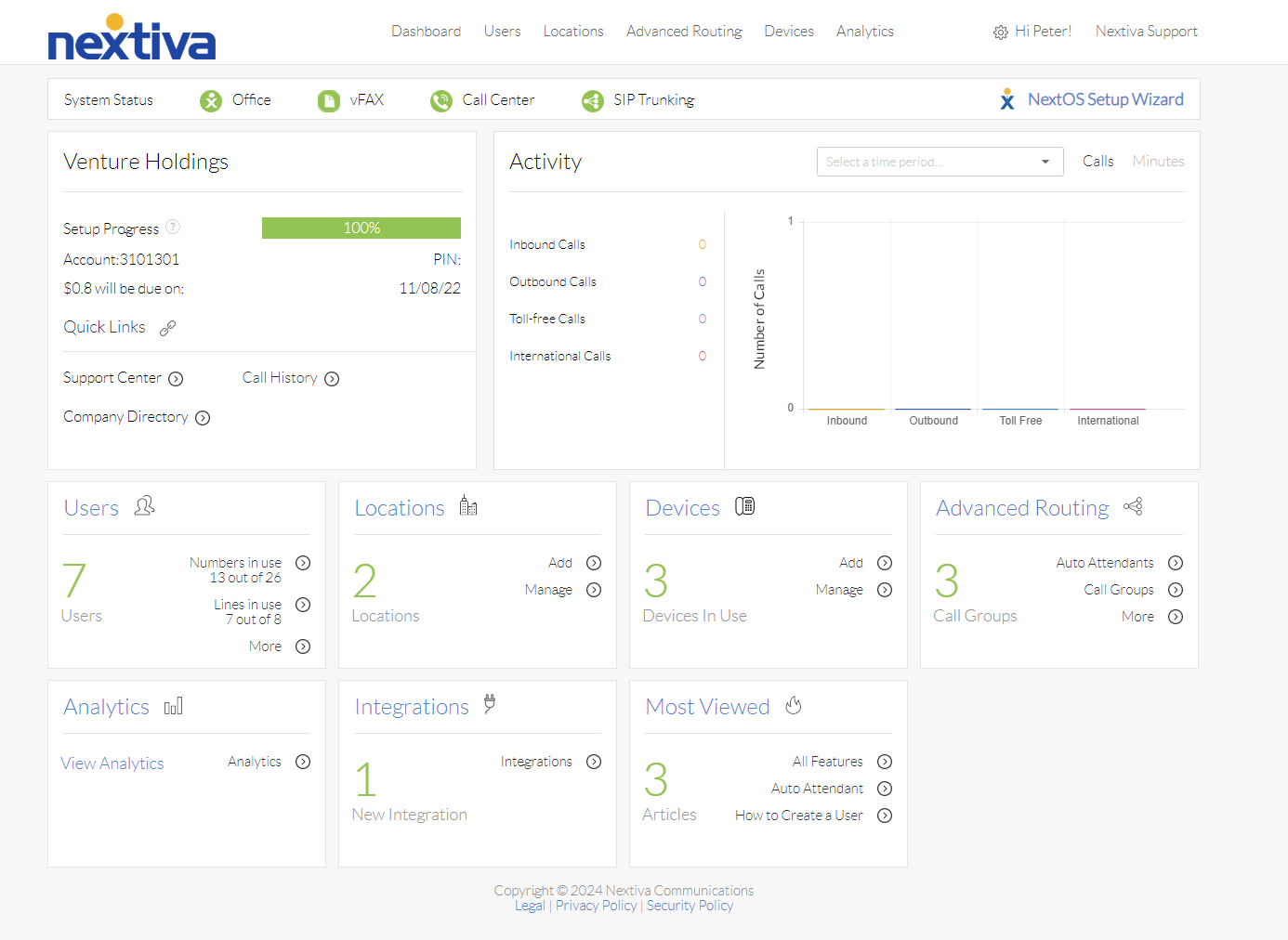
Choose the image that looks most like your screen once logged in: | |
 |  |
Delete a Schedule
Before a schedule can be deleted, it has to be unassigned from the account. There is no easy way to check where a schedule is assigned.
- Log in to the NextOS 3.0 portal as an administrator.
- Hover over the account manager's name in the upper right-hand corner and click on My Account.
- Click Schedules on the left-hand side.
- Locate the schedule to delete. If the schedule was built on a location, you will need to select the location from the drop-down menu.
- Hover over the schedule and click the trash can icon to delete it.
- Click Delete schedule to confirm you want to delete the schedule.
- If not in use, the schedule will be deleted.
Still need help with this?