Music on Hold
Article 000003824 · Updated Nov 19, 2025 · 4,987 views
Music on hold is included with all Nextiva accounts. Below are 3 free options that can be uploaded to your account.
Custom music can also be uploaded and assigned. Nextiva has specific audio format requirements for Music on Hold:
- .wav
- 8 or 16 bits
- 8000hz
- Mono
- PCMU (may be called U-Law or PCM Unsigned)
- No larger than 2MB
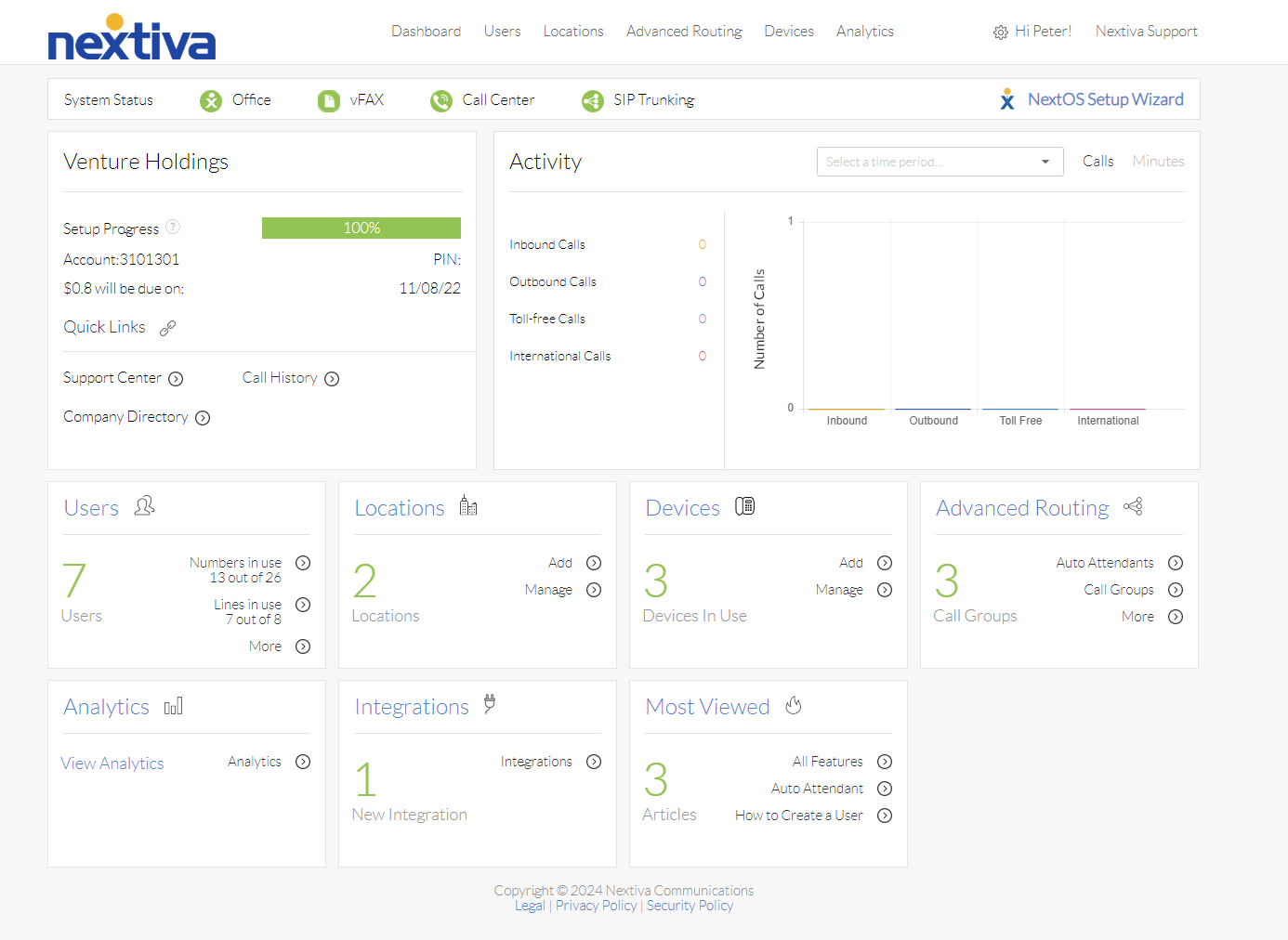
Choose the image that looks most like your screen once logged in: | |
 |  |
Setup
Audio files first have to be uploaded to the account before they can be assigned.
How to Upload Music
- From the voice administrator portal, hover over Locations at the top of the page and click Manage Locations.
- Click on the location to upload the Music on Hold on.
- Scroll down and expand the Announcements section by clicking on it.
- Click Upload File.
- Click Choose File and select a file from your computer.
- Enter a name for the file in Announcement Name.
- Click Upload
- The file will be uploaded to the location, but will NOT be selected as Music on Hold.
Assigning Music on Hold
If you have just uploaded a file and are still on that page, jump to step 3.
- From the voice administrator portal, hover over Locations at the top of the page and click Manage Locations.
- Click on the location to assign the Music on Hold on.
- Scroll down and expand the Location Features section by clicking on it.
- Click on Music on Hold to expand that section.
- Click the pencil icon next to Default.
- In the Music on hold message section, click the radio button by the option Custom Music File.
- From the Dropdown menu that appears, select the file to play for Music on Hold.
- Click Save.
Still need help with this?