Update Payment Information
Article 000003771 · Updated Jun 2, 2026 · 5,016 views
| Nextiva will automatically charge the credit card on file at the beginning of each billing cycle. You can update the credit card on file through your billing portal. | |
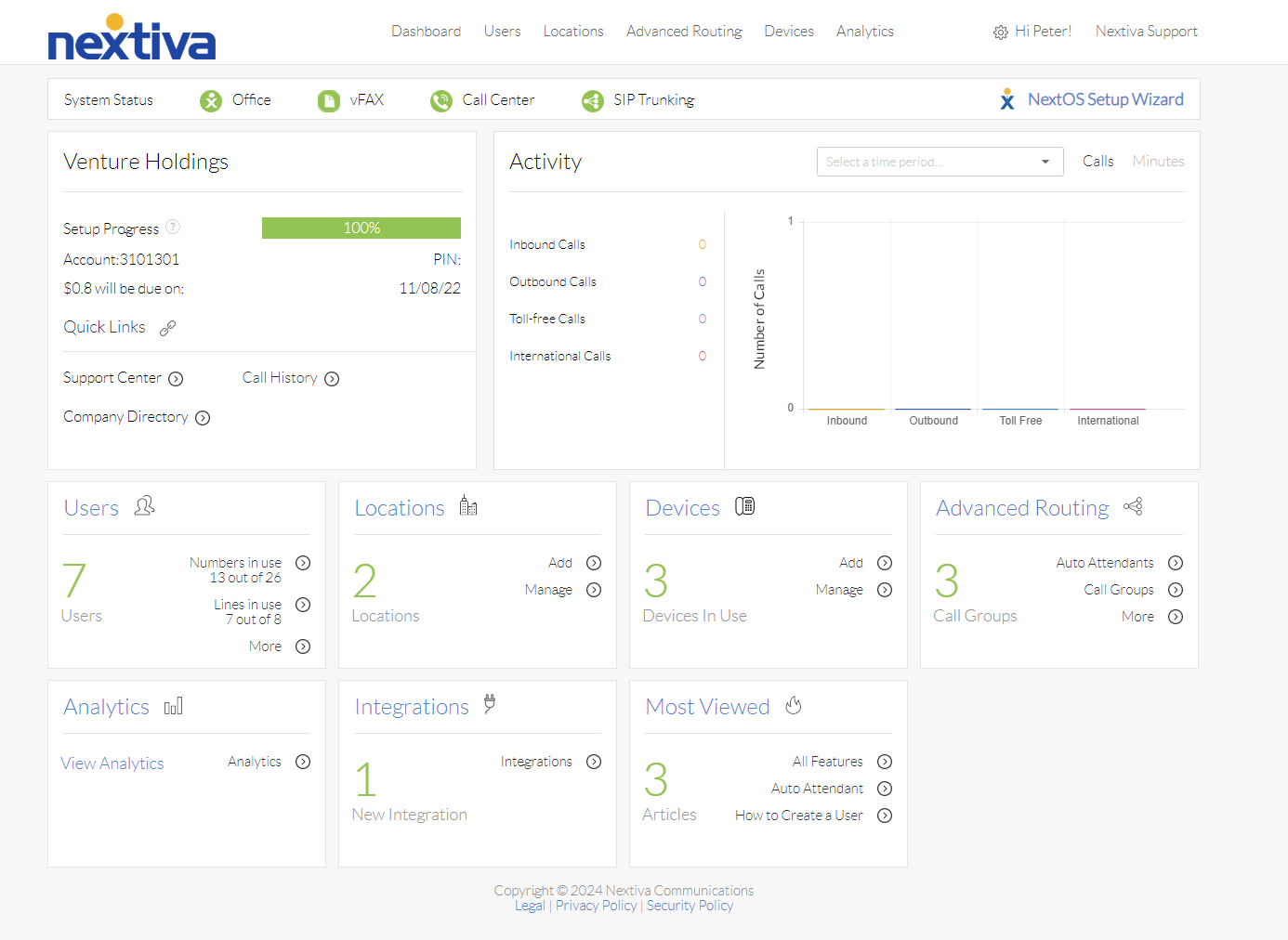
Choose the image that looks most like your screen once logged in: | |
 |  |
Update Payment Method
- Log in as an administrator with billing access.
- Hover over the account manager's name in the upper right-hand corner and click on My Account.
- Click on Billing on the left-hand side of the page.
- Scroll down and click the + icon at the bottom right-hand corner of the page.
- Fill in the fields for the Credit card information section as indicated below. Refer to the image below as you work.
- Name on card: the name that appears on the credit card.
- Credit card type: Visa, MasterCard, American Express, or Discover.
- Credit card number: the 16-digit number that appears on the front of the credit card.
- Expiration date: the expiration date that appears on the front of the credit card.
- Name on card: the name that appears on the credit card.
- Fill in the fields for the Billing name and address section as indicated below. Refer to the image below as you work.
- First name: the first name of the credit card holder.
- Last name: the last name of the credit card holder.
- Billing address line 1: the street number and street name of the billing address for the credit card.
- Billing address line 2: the suite number, apartment number, floor number, etc. for the billing address of the credit card.
- City: the city of the billing address for the credit card.
- State: the state of the billing address for the credit card.
- Zip: the zip code of the billing address for the credit card.
- Phone number: the phone number that corresponds with the billing address of the credit card.
- First name: the first name of the credit card holder.
- Click Save in the bottom right-hand corner of the screen.
Still need help with this?