Alternate Numbers
Article 000002144 · Updated Oct 2, 2025 · 3,218 views
|
Alternate numbers allow for up to 10 additional numbers to ring the same inbound path. If a number is assigned as an alternate number, it cannot be used for texting.
This feature is commonly used when you need direct dial phone numbers, while keeping a single unified outgoing caller ID for multiple users. This feature also allows you to manipulate the Ring Pattern of calls arriving on those extensions or phone numbers. | |
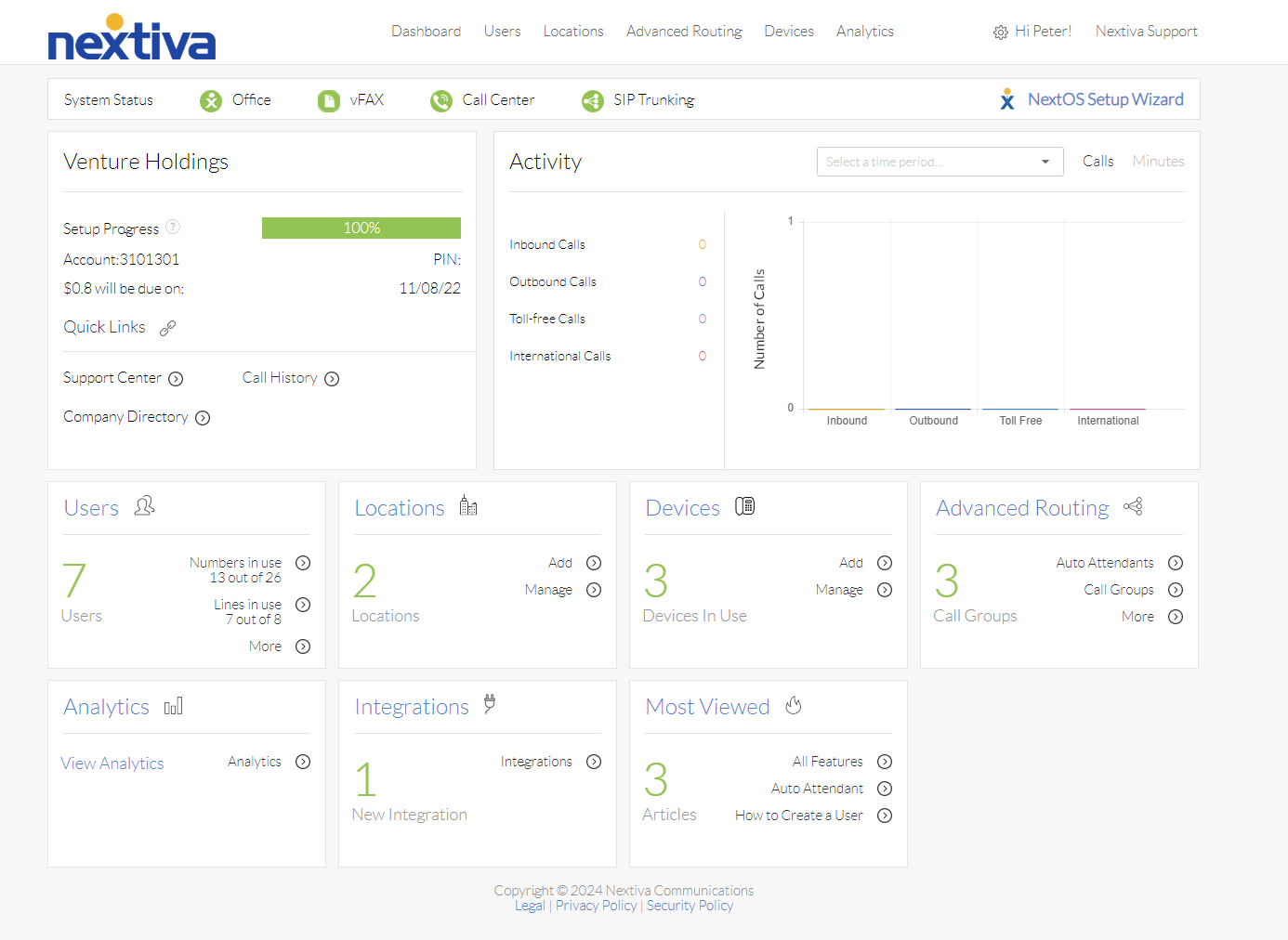
Choose the image that looks most like your screen once logged in: | |
|
|  |
Setup
Alternate numbers can be configured on users, teams, or call flows.
Users
Note: A user must have a voice license assigned to them for these steps to work.
- Log in to the voice portal as an administrator.
- Click on Users.
- Hover your mouse over the user to assign an alternate number and click the vertical ellipses on the right-hand side.
- Click on Voice Settings.
- In the Phone Number section (default landing page) click Add Number.
- Choose a number from the drop-down menu or set an extension.
- If desired set a different ring tone (ring pattern).
- Click Save.
- Repeat steps 5 through 8 as needed.
Teams
- Log in to the voice portal as an administrator.
- From the main page, select Teams on the left-hand side.
- Hover over the team to add the alternate numbers and click the vertical ellipses on the right-hand side.
- Select Voice Settings.
- In the Phone Number section (default landing page) click Add Number.
- Choose a number from the drop-down menu or set an extension.
- If desired set a different ring tone (ring pattern).
- Click Save.
- Repeat steps 5 through 8 as needed.
Call Flows
| Call flows do NOT support configuring alternate ring patterns. |
|---|
- Log in to the voice portal as an administrator.
- Select Communication on the left.
- Click on Phone system.
- Click on Call Flows.
- Select a call flow to assign an alternate number to.
- Note: If the call flow is active, you must deactivate it to add an alternate number.
- Note: If the call flow is active, you must deactivate it to add an alternate number.
- Click Add phone number
- Choose a number from the drop-down menu or set an extension.
- Click Save & Continue.
Still need help with this?