Conference Bridge Setup
Article 000002141 · Updated Sep 18, 2025 · 6,428 views
| Conference bridges allow for conference calls to be hosted by users on a location. Each bridge can support a maximum number of callers based on your account licensing. There is a maximum of 250 participants in a single conference call. The first time you configure a conference bridge, you may need to contact Nextiva support to be able to enable this feature. | |
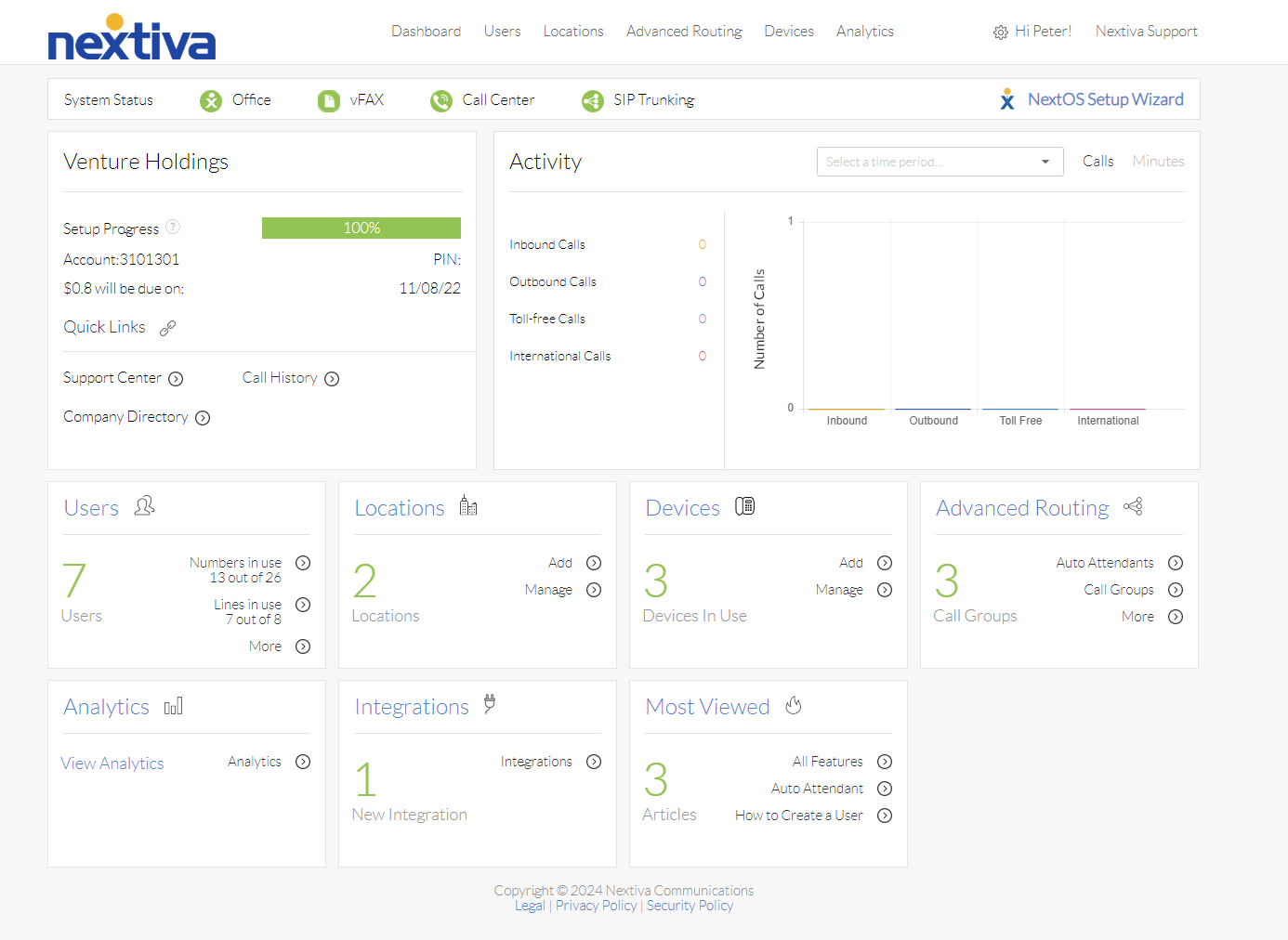
Choose the image that looks most like your screen once logged in: | |
 |  |
Setup
Before a conference can be created, a conference bridge must first be built at the location.
Conference Bridge Setup
Each location hosts its own conference bridge, each bridge can host multiple conference calls. The steps to create a bridge are below:
- Navigate to locations by clicking Account Info on the left, then selecting the Locations tab.
- Hover over the location to set up on, click the vertical ellipses, and click Voice Settings.
- Click Conferencing.
- Click Add Conference Number
- Fill out the fields:
- Enter a description
- Choose a phone number for the bridge
- Select users who can use the conference bridge.
- Click Save.
- Enter a description
- The system will automatically allocate the appropriate number of ports to the bridge based on your license limits.
- Once the bridge is set up, a conference will need to be created at the user level.
Confernece Call Setup
Before a conference call can be created, a conference bridge needs to be built on the user's location. See the section above for instructions on how to set up a conference bridge.
- Access the user to set up the conference by clicking on Users.
- Hover over the user, click the vertical ellipses, and click Voice Settings.
- Click on Conferencing.
- Click on Location conference numbers to expand the section.
- Click Add conference bridge to create a new conference for the user.
- Fill out the fields
- Enter a description for the conference.
- Choose a conference number from the dropdown menu.
- Select an option for when attendees join or leave:
- Play Tone - Will play a tone when someone joins or leaves.
- Play their recorded name - Will prompt a caller to record their name when they join and play it when they join and leave
- No Notification - No name or tone will play when someone joins or leaves.
- Play Tone - Will play a tone when someone joins or leaves.
- Enter a description for the conference.
- Click Save.
To access the conference ID and moderator PIN, click on the created conference.
Still need help with this?