Orbital Call Parking - Setup Park Group
Article 000002191 · Updated Nov 6, 2025 · 6,158 views
| Park groups are used to distribute parked calls to the first available park user. This helps to ensure that two calls are not parked on the same park line. If a call is parked using a park group no ringback notification can occur. | |
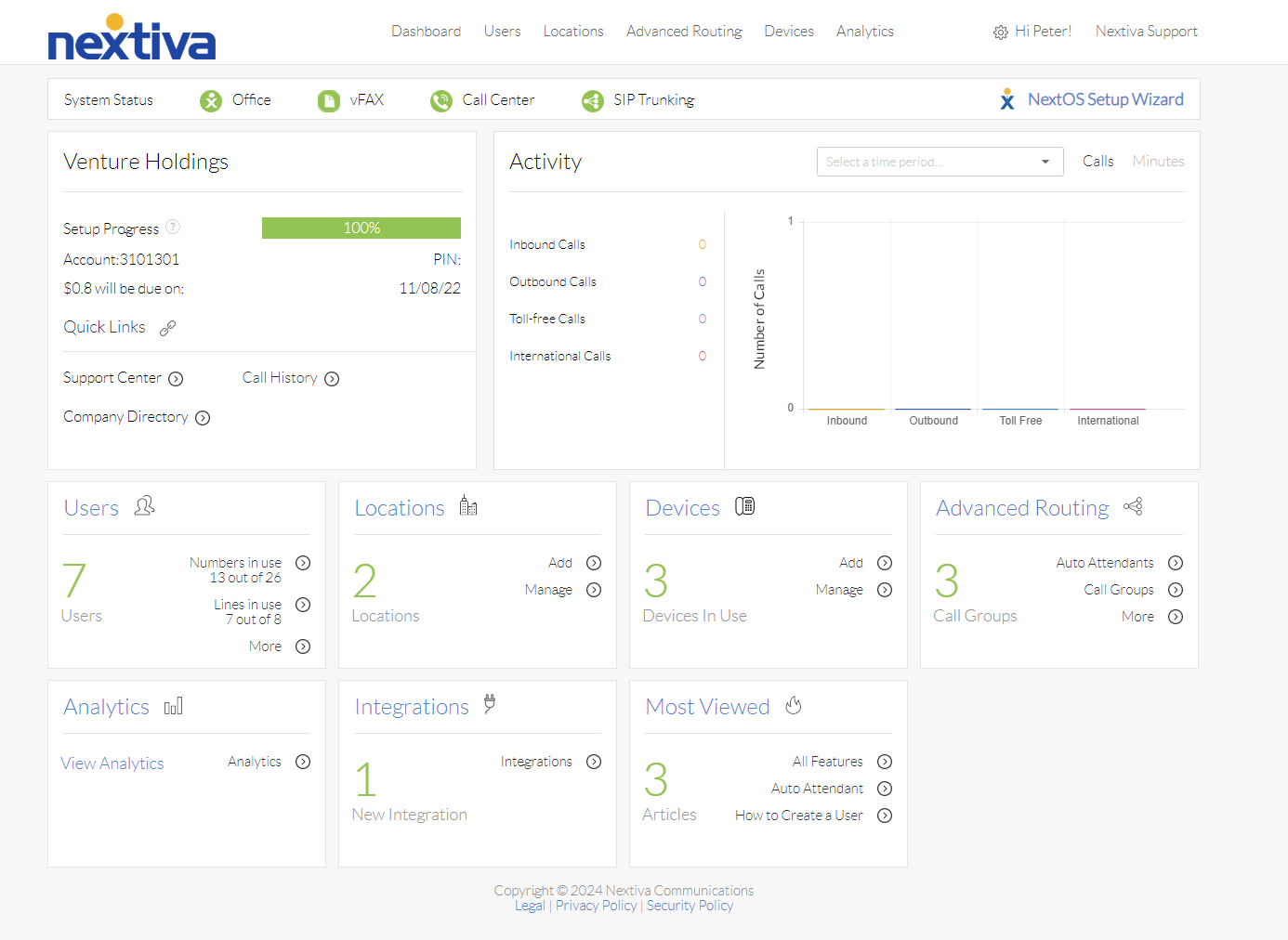
Choose the image that looks most like your screen once logged in: | |
 |  |
Setup
Before completing setup, you need to have park users configured on your account. Park users require a call park license and need to be configured by Nextiva support. Contact our support team to assist you with setting up park users.
- As an administrator, navigate to the teams section.
- If no park team is created, make a park team and assign only the park users to it.
To prevent issues with call routing, assign ONLY park users to the park team.
- Hover over the park team and click the vertical ellipses on the right-hand side and select Voice Settings.
- Make note of the extension for the team.
- Click Call Distribution and set up to ring one user at a time.
- Distribution type should be set First to last with any value for the number of rings.
- Leave Allow call waiting on users disabled.
- Click Save.
- Click on Forwarding.
- Open Call Forward (busy).
- Enter an extension to send calls to when all park lines are full.
- Click Save.
Still need help with this?