Location Forwarding
Article 000002182 · Updated Jul 31, 2025 · 3,964 views
| Location forwarding will cause all phone numbers assinged to users to forward to a specified number. This will NOT affect numbers assigned to call flows or teams. | |
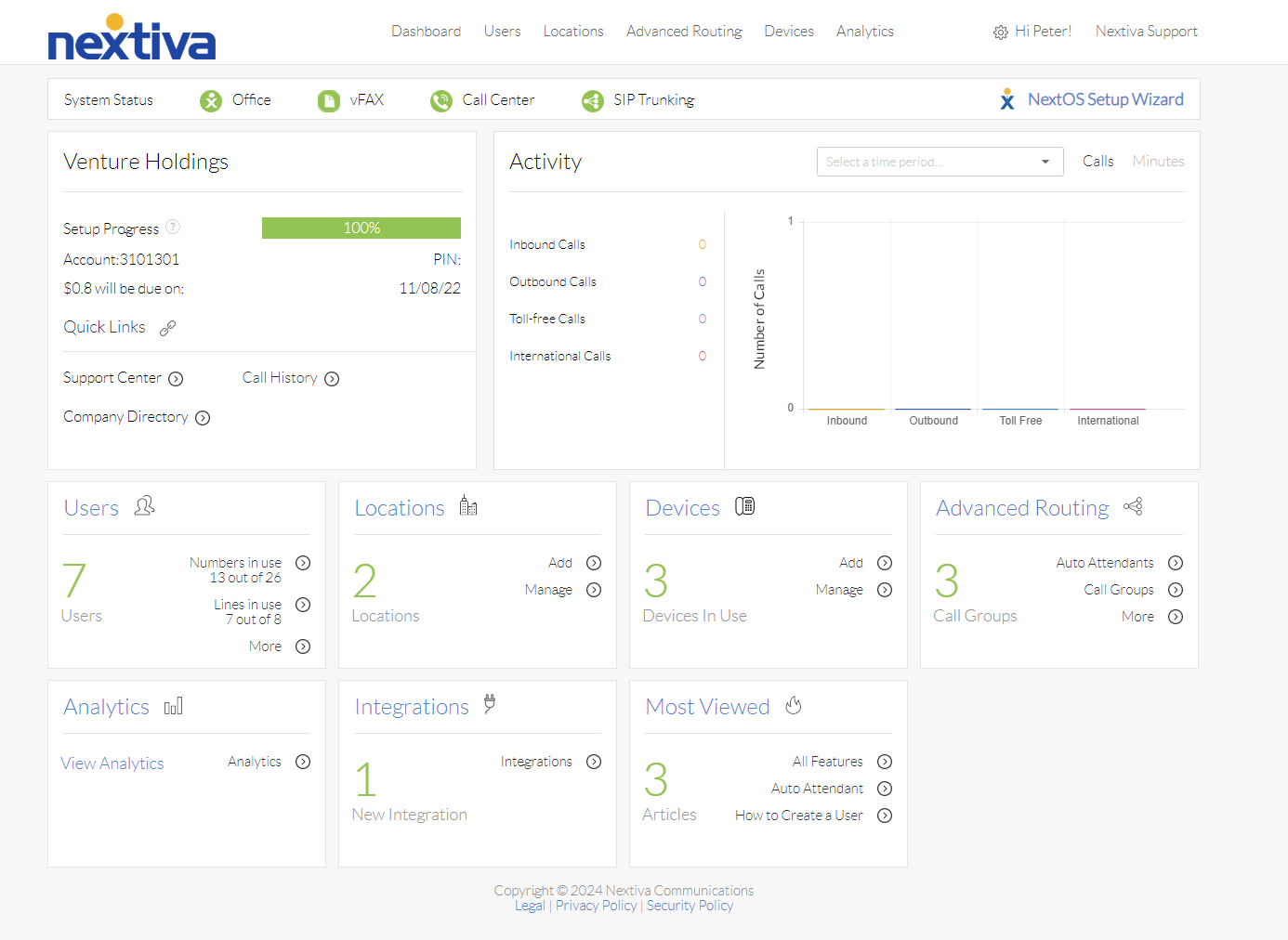
Choose the image that looks most like your screen once logged in: | |
 |  |
Setup
- Log in to the portal as an administrator.
- From the main admin page, click Account Info on the left and select the locations tab
- Hover over the location to configure, click the vertical ellipses on the right-hand side, and then click Voice Settings.
NOTE: There must be a user who has gone through voice setup on the location, otherwise Voice Settings will NOT be present.
- Select Location Forwarding under the Voice Settings column.
- Enter a number or extension to forward calls to.
- Select a schedule that defines the business hours.
- Click Save.
- Click the On/Off button to enable location forwarding.
- Calls will be forwarded outside business hours to the number listed.
Still need help with this?