Assign a Device to a User
Article 000002160 · Updated Sep 25, 2025 · 8,107 views
| These steps walk through how to assign a device to a user on an account. The device should already be added to the account. See Add a Device for instructions on how to add a new device to the account. | |
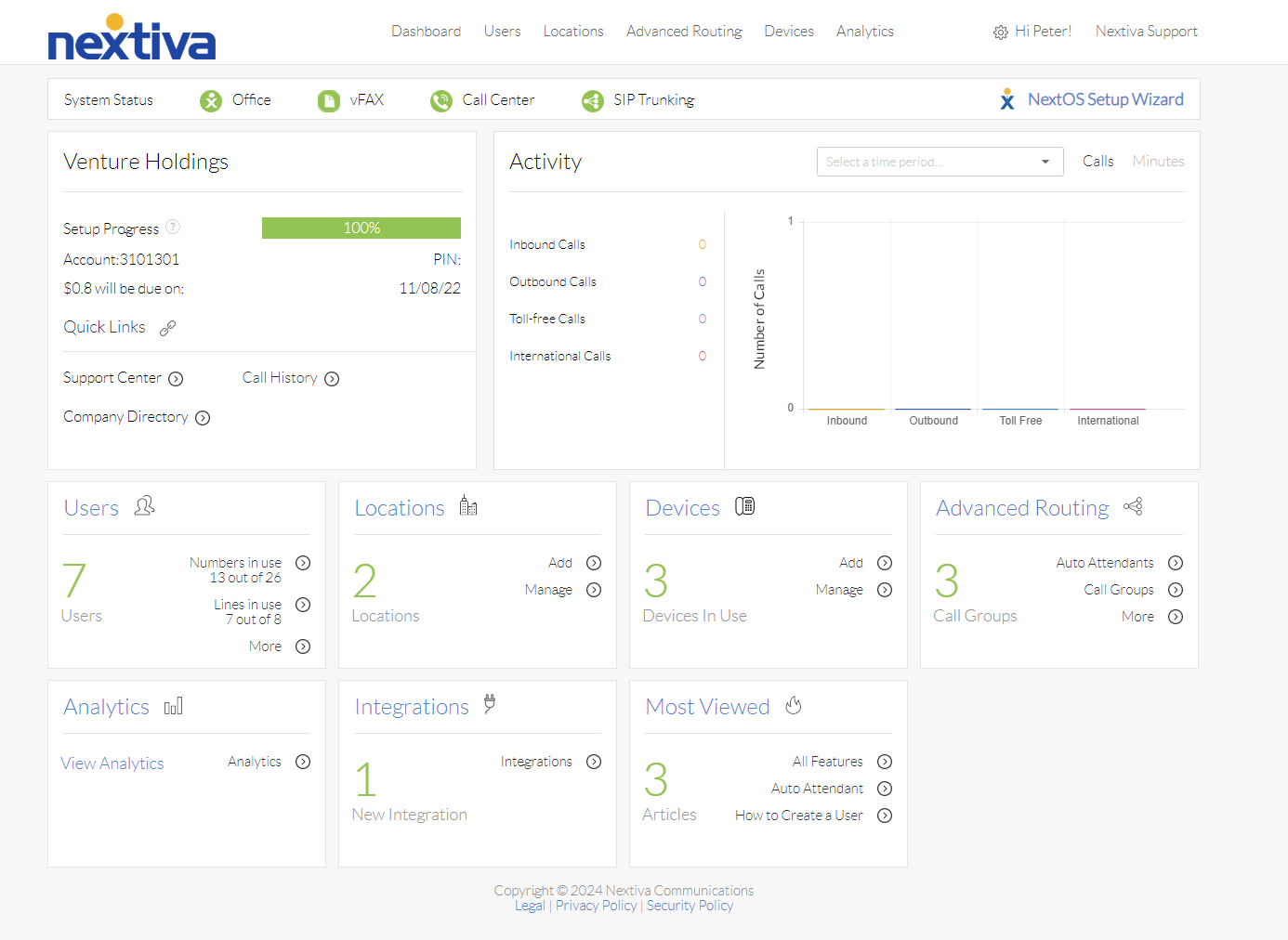
Choose the image that looks most like your screen once logged in: | |
 |  |
Setup
- Log in to the platform voice portal as an administrator.
- Click Users.
- Hover over the user the device will be assigned to.
- Click the vertical ellipses on the right-hand side and select Voice Settings.
- On the left-hand side of the user's settings click Phone.
- Either click Change Phone or Add Phone.
- From the Choose a phone drop-down menu select the phone to assign. You can use the search bar to find the device by model or MAC address.
- Click Save.
- The device will be assigned to the user.
Still need help with this?